How to Sync Web Data to Notion Automatically (Without Any Code)
Sync web data to Notion automatically with Browzey's AI browser agent. No code, no Zapier — extract leads, jobs, prices, and content into your Notion database.
 CollinFounder, Browzey10 min read
On this page
- Why Notion Alone Is Not Enough
- What Browzey Does (Quick Overview)
- Step-by-Step: Syncing Web Data to Notion with Browzey
- Step 1: Connect Notion to Browzey
- Step 2: Identify the Website You Want to Pull Data From
- Step 3: Create a Workflow in Browzey
- Step 4: Run Browzey on a Single URL First
- Step 5: Scale Across Multiple URLs Using a Spreadsheet
- Real Use Cases for Browzey to Notion Sync
- Sales Teams: Automate Lead Research
- Recruiters: Build Talent Pipelines Automatically
- Marketers: Track Competitors Without the Spreadsheet Headache
- Researchers and Analysts: Centralize Web Data in One Place
- Content Teams: Track Publishing and Performance Data
- Tips to Get the Best Results
- What Types of Websites Work with Browzey
- Frequently Asked Questions
- The Bottom Line
If you use Notion as your team's central workspace, you already know how powerful it is. Databases, wikis, project trackers, CRM tables — Notion handles all of it.
But here is the problem most teams run into: getting data into Notion is still a manual job.
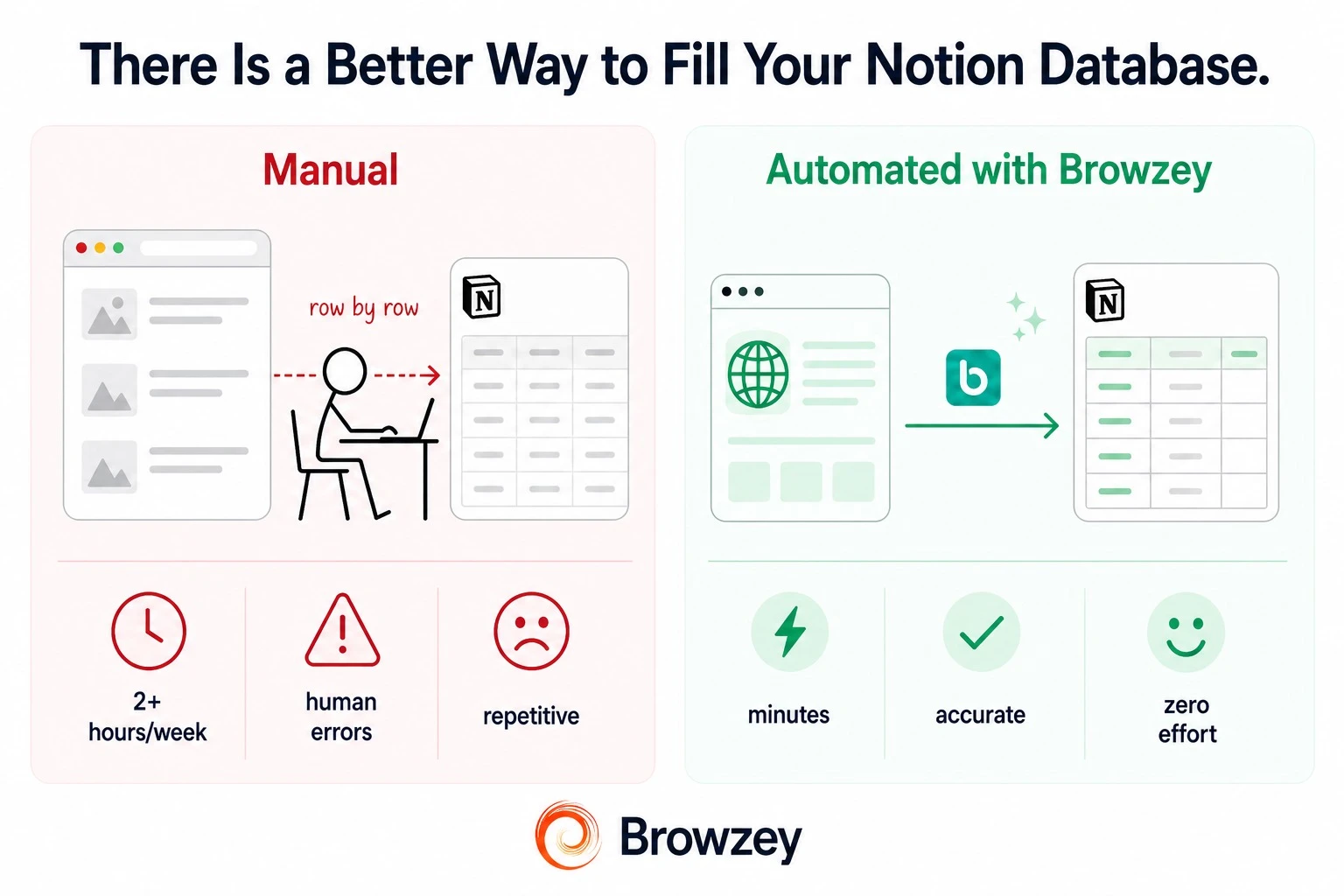
Someone has to copy leads from LinkedIn. Someone has to paste job listings from Indeed. Someone has to transfer product data from competitor websites. Row by row. Tab by tab. Day after day.
That is exactly the kind of work Browzey was built to eliminate.
This guide walks you through how to sync web data to Notion automatically using Browzey, with zero code involved.
Why Notion Alone Is Not Enough
Notion is excellent at organizing and displaying data. It is not built to collect it.
Most teams end up doing one of three things:
Option 1: Manual copy-paste. Someone on the team spends hours each week copying information from websites into Notion rows. This is slow, error-prone, and nobody enjoys doing it.
Option 2: CSV imports. Teams export CSVs from tools and upload them into Notion. This works, but it is not real-time and requires a person to initiate it every single time.
Option 3: Native integrations or Zapier. These work for specific supported apps but fail the moment you need data from a website that does not have an API or a Zapier connector.
Browzey fills the gap that all three options leave open: it can pull structured data from any website and push it directly into your Notion database automatically.
What Browzey Does (Quick Overview)
Browzey is an AI browser automation platform. You describe a task in plain English, and Browzey's AI agent opens a browser, navigates the website, extracts the data, and sends it wherever you want.
For Notion sync specifically, here is what that looks like in practice:
- Browzey visits a website or a list of URLs
- It extracts the data fields you specify (name, email, price, job title, company, etc.)
- It pushes each record directly into a Notion database as a new row or page
- It can repeat this process on a schedule or across hundreds of URLs from a spreadsheet
No code. No API setup. No Zapier workflows to untangle.
Step-by-Step: Syncing Web Data to Notion with Browzey
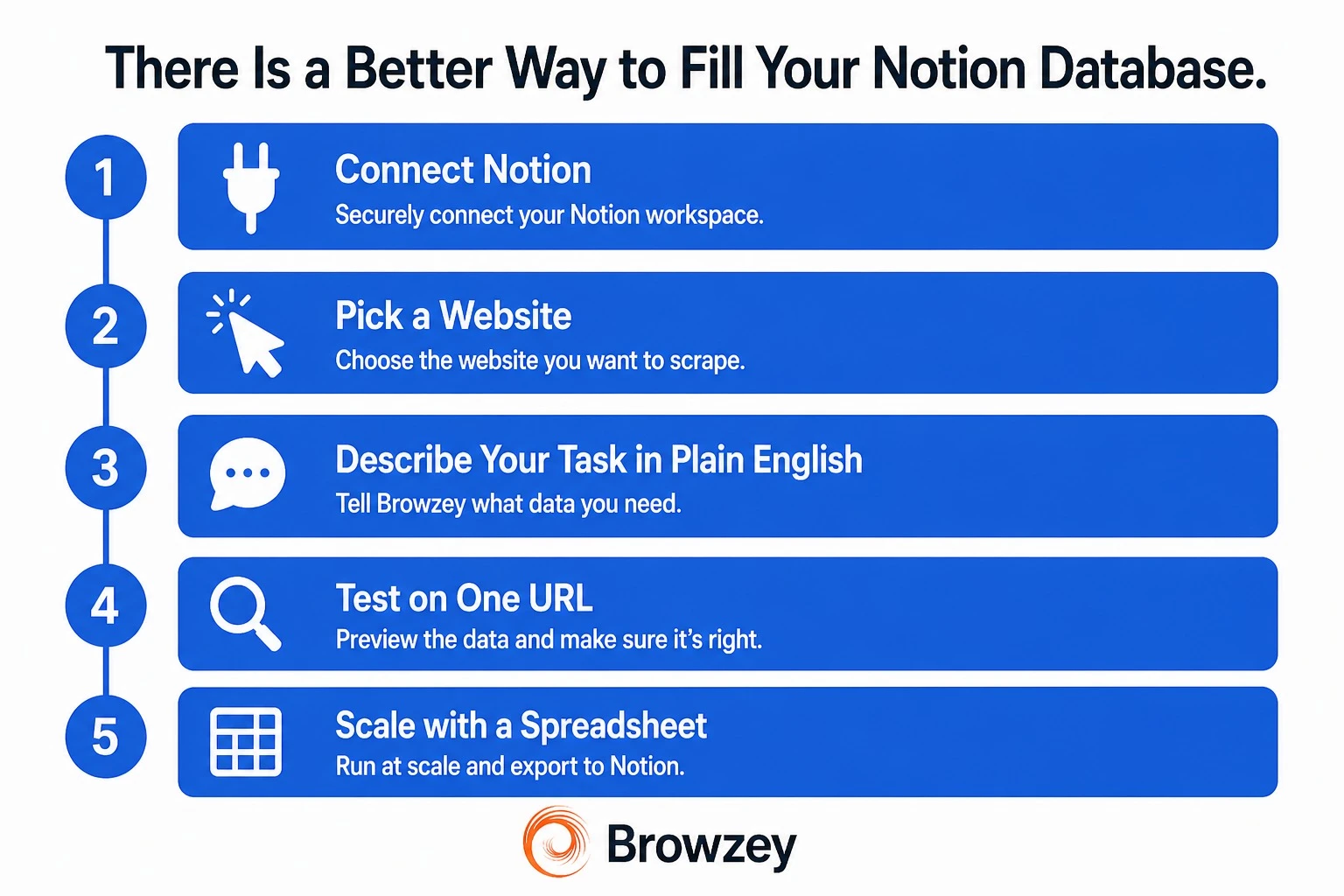
Step 1: Connect Notion to Browzey
Head to the Integrations page in your Browzey account and click Connect next to Notion. You will be redirected to Notion to authorize the connection and select which databases Browzey can access.
This is a one-time setup and takes under two minutes.
Step 2: Identify the Website You Want to Pull Data From
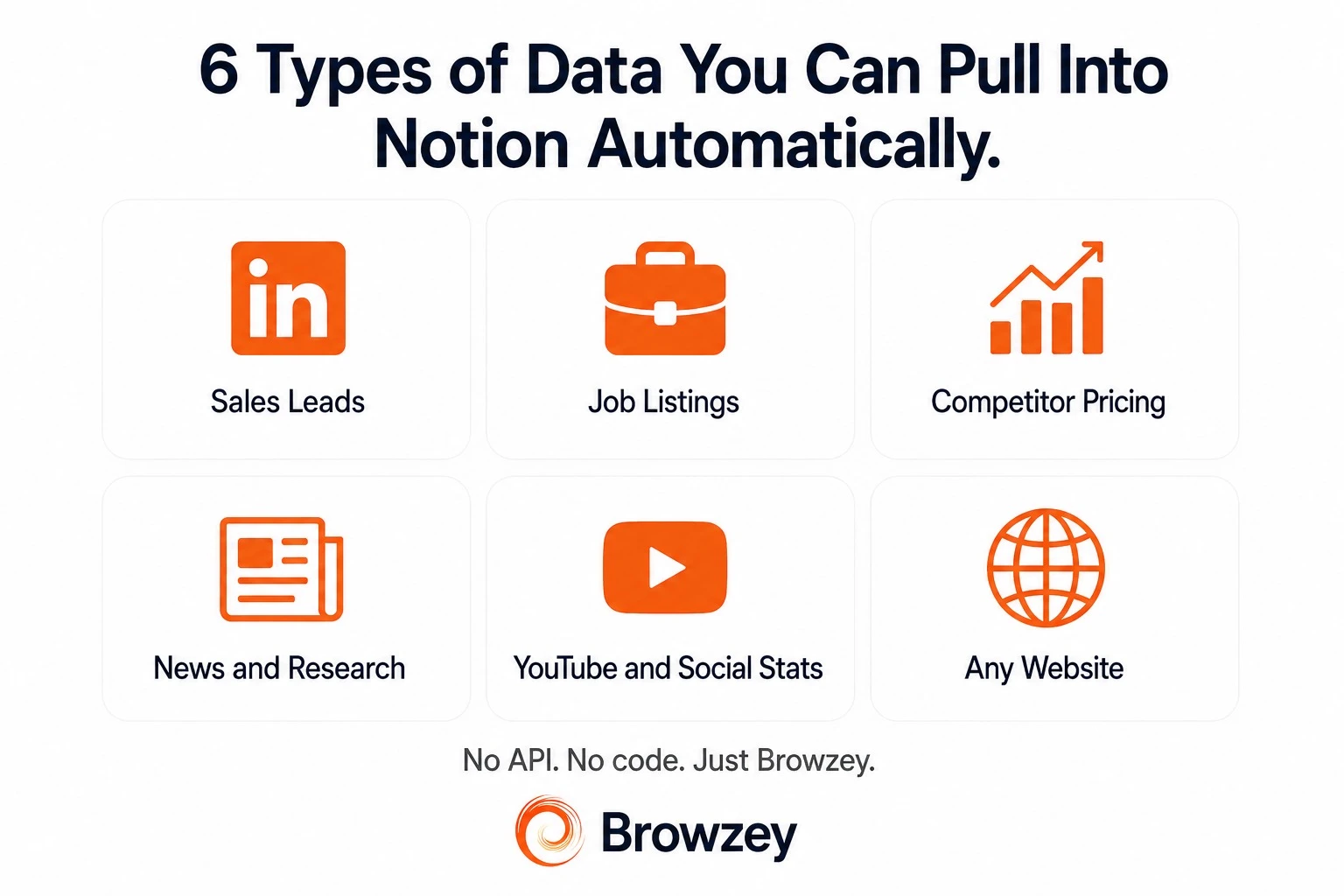
Think about what information you are currently copying manually into Notion. Some of the most common use cases include:
- LinkedIn profiles (sales leads, recruiter shortlists)
- Job listings from Indeed or company career pages
- Product data and pricing from competitor websites
- News articles or blog posts for a content research database
- YouTube video stats for a content performance tracker
- Instagram or TikTok profile data for influencer research
Pick one to start with. The more specific you are in Step 3, the better your results.
Step 3: Create a Workflow in Browzey
Open the Browzey browser agent and describe your task in plain English. Be clear about:
- What website to visit
- What data to extract
- What Notion database to send it to
Here are a few real examples of how to phrase your instructions:
For lead research: "Go to this LinkedIn profile URL, extract the person's name, job title, company, and location, then add a new row in my Notion CRM database with those fields."
For competitor tracking: "Visit the pricing page of these five competitor websites and pull the plan names, prices, and key features into my Notion competitor research database."
For job monitoring: "Search for senior product manager roles on Indeed, extract the job title, company, location, and salary range for the first 20 results, and add them to my Notion job tracker."
Browzey's AI understands the intent behind these instructions and figures out how to execute them on the actual page.
Step 4: Run Browzey on a Single URL First
Before scaling up, test your workflow on one URL. Browzey will run the task and show you a preview of the data it extracted. Check that the fields are accurate and that the Notion rows are being created correctly.
If something looks off, adjust your instructions slightly and run it again. Most workflows are accurate on the first or second attempt.
Step 5: Scale Across Multiple URLs Using a Spreadsheet
Once your workflow is working correctly, you can run it across hundreds of URLs at once.
Upload a CSV or Excel file with your list of URLs (or any input data like company names, search terms, etc.), and Browzey will repeat the exact same workflow for every row automatically. Browzey supports up to 100 URLs per run with built-in rate limiting to keep things smooth.
Every result gets pushed into your Notion database as a new row, fully organized and ready to use.
Real Use Cases for Browzey to Notion Sync
Sales Teams: Automate Lead Research
Stop asking your SDRs to manually fill out CRM rows. Point Browzey at LinkedIn, company websites, or directories and let it populate your Notion CRM with contact information, company details, and relevant context. Your team shows up to calls prepared instead of spending their mornings on copy-paste.
Recruiters: Build Talent Pipelines Automatically
Pull candidate profiles from LinkedIn or job boards directly into a Notion talent tracker. Include name, current role, location, and profile URL so your team can review and act without switching between twelve tabs.
Marketers: Track Competitors Without the Spreadsheet Headache
Set up a Browzey workflow that visits your top competitor websites weekly, pulls their latest pricing, feature updates, and blog posts, and keeps your Notion competitive intelligence database current. No manual monitoring required.
Researchers and Analysts: Centralize Web Data in One Place
Building a database of industry reports, news articles, funding announcements, or academic papers? Browzey can scrape and organize that information into structured Notion pages so your research stays in one clean, searchable place.
Content Teams: Track Publishing and Performance Data
Pull video titles, view counts, and engagement data from YouTube channels. Extract article titles and publication dates from news sites. Keep your Notion content database updated with fresh data without anyone touching it manually.
Tips to Get the Best Results
Be specific in your instructions. The more detail you give Browzey about what to extract, the more accurate the output. Instead of "get contact info," say "extract the person's full name, job title, company name, and LinkedIn URL."
Clean your input spreadsheet before bulk runs. Remove blank rows, fix typos in URLs, and make sure column headers are consistent. Clean input leads to clean output.
Use Notion database views to organize incoming data. Set up filtered views in your Notion database so new rows from Browzey land in the right place automatically. A "New Leads" filter, for example, keeps fresh data visible without cluttering your main view.
Start with 5 to 10 rows before running at scale. Always validate your workflow on a small batch first. It takes two extra minutes and saves you from cleaning up a poorly structured bulk run.
Log your workflows. Save your Browzey workflow instructions in a Notion page itself. That way your team can reuse and refine them without starting from scratch each time.
What Types of Websites Work with Browzey
Browzey works with any website you can access in a browser. That includes:
- Public directories and listing sites
- Social platforms (LinkedIn, YouTube, Instagram, TikTok)
- Job boards like Indeed
- Company websites, pricing pages, and landing pages
- News sites, blogs, and content platforms
- Internal business tools and portals (with your login credentials)
- Pages that require login or two-factor authentication
If you can open it in a browser and read data on the screen, Browzey can automate it.
Frequently Asked Questions
Do I need any technical skills to use Browzey with Notion? No. You describe your task in plain English and Browzey handles the rest. Connecting Notion takes a couple of clicks, and building a workflow is as simple as typing out what you want done.
Will Browzey work on websites that require me to log in? Yes. Browzey runs inside a real browser environment, so you can log into sites the same way you normally would. Your credentials stay under your control and are not stored by Browzey.
How many pages or URLs can I process in one run? Browzey supports up to 100 URLs per run with automatic rate limiting. For larger datasets, you can split them into batches.
Does Browzey create new rows in Notion or update existing ones? By default, Browzey creates new entries in your Notion database. Updating existing records based on a unique field (like an email or URL) is a workflow configuration option.
Can I schedule Browzey to sync data to Notion on a recurring basis? Scheduled automations are on the Browzey roadmap and coming soon. Currently, you can rerun saved workflows with one click whenever you need a fresh sync.
What if a website changes its layout and breaks my workflow? Browzey uses AI to identify page elements by their visual appearance and context, not by fixed HTML selectors. This means it is significantly more resilient to layout changes than traditional scraping tools. If something does break, updating your workflow instructions usually fixes it quickly.
Is the data synced to Notion in real time? Data is pushed to Notion as Browzey processes each record during a workflow run. There is no delay between extraction and sync.
Can my whole team use the same Notion integration and workflows? Yes. Team collaboration features are on the Browzey roadmap. Currently, you can share workflow instructions (the plain English descriptions) with teammates so they can run the same automations from their own accounts.
Is Browzey free to use? Browzey has a free tier that gives you access to the AI agent and 26 tools. Paid plans unlock bulk automation, larger run limits, and integrations including Notion sync.
Can I export the same data to both Notion and a spreadsheet at the same time? Yes. Browzey supports exporting to CSV and JSON in addition to syncing with Notion and Google Sheets. You can keep your Notion database and a local spreadsheet in sync from the same workflow run.
The Bottom Line
Notion is only as useful as the data inside it. If keeping it updated means someone on your team spends hours each week copying and pasting from the web, that is a problem worth solving.
Browzey makes it possible to sync web data to Notion automatically, without writing a single line of code. You describe the task, connect your Notion database, and let the AI do the repetitive work.
Whether you are building a sales pipeline, a competitor tracker, a talent database, or a research hub, the workflow is the same: tell Browzey what you need, and it handles the rest.
Get started with Browzey for free and connect your Notion workspace today.
Recommended Tools
Further reading

How to Export YouTube Channel Data for Content Strategy (2026)
Extract YouTube channel data at scale with Browzey's free scraper. Bulk-export 20+ competitor channels to CSV for content strategy and benchmarking.
May 1, 2026
How to Extract Emails from Any Website
Learn how to extract email addresses from websites quickly and ethically. Includes a free email extractor tool and best practices for compliance.
January 24, 2025
How to Automate Data Entry and Save Hours Every Week
Learn practical strategies to automate repetitive data entry tasks. Reduce errors, save time, and free yourself from manual web form work.
January 21, 2025
On this page
- Why Notion Alone Is Not Enough
- What Browzey Does (Quick Overview)
- Step-by-Step: Syncing Web Data to Notion with Browzey
- Step 1: Connect Notion to Browzey
- Step 2: Identify the Website You Want to Pull Data From
- Step 3: Create a Workflow in Browzey
- Step 4: Run Browzey on a Single URL First
- Step 5: Scale Across Multiple URLs Using a Spreadsheet
- Real Use Cases for Browzey to Notion Sync
- Sales Teams: Automate Lead Research
- Recruiters: Build Talent Pipelines Automatically
- Marketers: Track Competitors Without the Spreadsheet Headache
- Researchers and Analysts: Centralize Web Data in One Place
- Content Teams: Track Publishing and Performance Data
- Tips to Get the Best Results
- What Types of Websites Work with Browzey
- Frequently Asked Questions
- The Bottom Line