How to Convert Any Webpage to Clean Markdown Instantly
Learn why markdown is essential for modern content workflows and how to convert webpages to markdown format quickly using free tools.
 CollinFounder, Browzey7 min read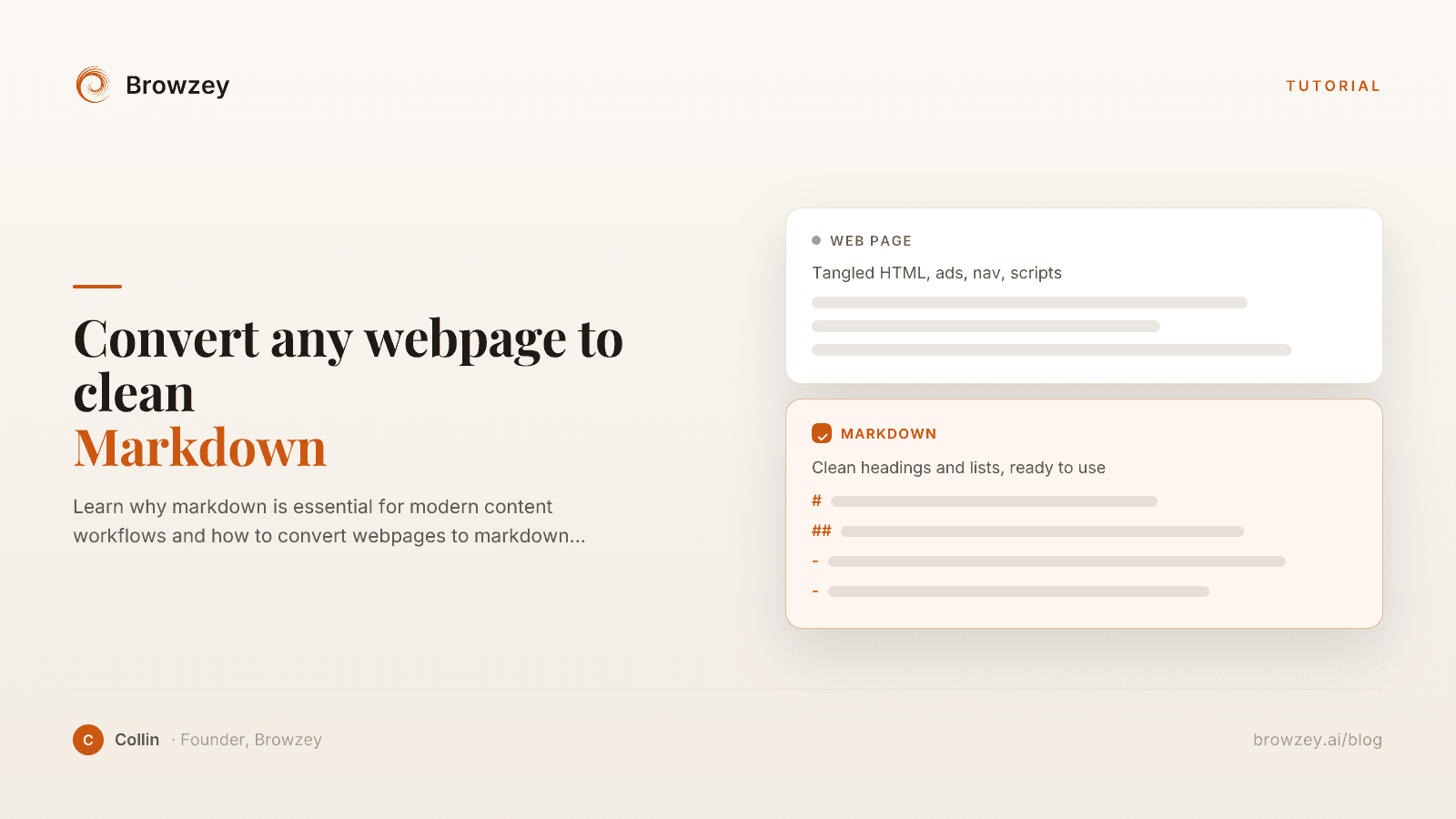
On this page
- Why Convert to Markdown?
- Readability
- Portability
- Version Control
- AI and LLM Compatibility
- Long-Term Preservation
- Common Use Cases
- Documentation Building
- Knowledge Base Creation
- Content Migration
- AI Training and Context
- Research and Reference
- Offline Access
- Method 1: Use a Free Online Tool
- How to use it:
- Best for:
- Method 2: Browser Extensions
- Pros:
- Cons:
- Method 3: Command Line Tools
- Pros:
- Cons:
- Method 4: Browser Automation
- Pros:
- Cons:
- What Makes Good Markdown Conversion?
- Preserving Structure
- Cleaning Noise
- Handling Special Elements
- Maintaining Readability
- Dealing with Complex Pages
- JavaScript-Rendered Content
- Paywalled Content
- Dynamic Elements
- Complex Layouts
- Organizing Converted Content
- File Naming
- Folder Structure
- Metadata
- Linking
- Bulk Conversion Workflow
- Step 1: Gather URLs
- Step 2: Automate Conversion
- Step 3: Review and Clean
- Step 4: Organize
- Legal Considerations
- Respect Copyright
- Check Terms of Service
- Give Attribution
- Robots.txt
- Real-World Applications
- Building a Personal Knowledge Base
- Training an AI Assistant
- Migrating Content
- Academic Research
- Start Converting Now
Markdown has become the universal language of content. Developers use it for documentation. Writers use it for drafts. Knowledge bases run on it. And increasingly, AI systems prefer it for training and context.
But most content still lives on websites as HTML. Converting webpages to markdown opens up powerful possibilities—from building documentation to training AI models. Here's how to do it effectively.
Why Convert to Markdown?
Readability
Markdown is human-readable even in its raw form:
## This is a Heading

This is a paragraph with **bold** and *italic* text.

- List item one
- List item two
Compare this to the HTML equivalent with its <h2>, <p>, <strong>, and <ul> tags. Markdown communicates structure without visual clutter.
Portability
Markdown files work everywhere:
- Any text editor can open them
- They render beautifully on GitHub, GitLab, Notion
- They convert easily to HTML, PDF, Word
- They're tiny compared to rich document formats
Version Control
Because markdown is plain text, you can:
- Track changes with Git
- See exactly what was modified in diffs
- Collaborate without document corruption
- Maintain complete history
AI and LLM Compatibility
Large language models work better with markdown:
- Clean structure helps models understand content hierarchy
- No HTML tags to confuse parsing
- Consistent formatting across sources
- Ideal for retrieval-augmented generation (RAG) systems
Long-Term Preservation
Markdown will be readable in 50 years. Proprietary formats may not be. For archiving important web content, markdown is a stable choice.
Common Use Cases
Documentation Building
Converting existing web documentation to markdown:
- API documentation from developer portals
- Help articles from SaaS platforms
- Technical specifications from vendor sites
Knowledge Base Creation
Building internal knowledge repositories:
- Competitor research compilation
- Industry best practices collection
- Training material aggregation
Content Migration
Moving content between platforms:
- Blog posts to new CMS
- Wiki pages to different systems
- Support articles to documentation tools
AI Training and Context
Preparing data for AI applications:
- Building context for RAG systems
- Creating training datasets
- Feeding AI assistants relevant documentation
Research and Reference
Saving web content for later use:
- Academic research sources
- Legal and compliance references
- Technical specifications
Offline Access
Creating markdown copies for:
- Reading without internet
- Working during travel
- Archiving critical information
Method 1: Use a Free Online Tool
The fastest way to convert any webpage is our free webpage to markdown converter:
How to use it:
- Copy the URL of the page you want to convert
- Paste it into the converter tool
- Click "Convert"
- Download the markdown file
The tool:
- Fetches the page content
- Strips navigation and ads
- Converts HTML to clean markdown
- Preserves headings, lists, and formatting
Try the free webpage to markdown converter →
Best for:
- Quick, one-off conversions
- No software installation needed
- Works on any device with a browser
Method 2: Browser Extensions
Several browser extensions add "Save as Markdown" functionality:
Pros:
- One-click conversion
- Works on the page you're viewing
- Can select specific content
Cons:
- Need to install extension
- Limited to manual, page-by-page conversion
- Quality varies between extensions
Method 3: Command Line Tools
For developers and power users, CLI tools offer programmatic conversion:
# Using pandoc
curl -s "https://example.com/article" | pandoc -f html -t markdown

# Using turndown-cli
turndown "https://example.com/article" > article.md
Pros:
- Scriptable and automatable
- Precise control over output
- Can batch process multiple URLs
Cons:
- Requires technical setup
- Need to handle JavaScript-rendered content separately
- More complex workflow
Method 4: Browser Automation
For dynamic sites or bulk conversion, browser automation is powerful:
// Example: Convert multiple pages to markdown
const urls = ['url1', 'url2', 'url3'];
for (const url of urls) {
  await page.goto(url);
  const content = await page.content();
  const markdown = turndownService.turndown(content);
  await fs.writeFile(`${slug}.md`, markdown);
}
With Browzey, you can describe this in plain language:
"Go to each URL in this list, wait for the page to load completely, convert the main content to markdown, and save each as a separate file"
Pros:
- Handles JavaScript-rendered content
- Can navigate complex sites
- Scales to many pages
Cons:
- Slower than direct HTTP requests
- More resource intensive
What Makes Good Markdown Conversion?
Not all converters are equal. Quality conversion means:
Preserving Structure
- Headings maintain their hierarchy (h1 → #, h2 → ##)
- Lists stay as lists
- Tables convert to markdown tables
- Code blocks preserve syntax
Cleaning Noise
- Navigation menus removed
- Advertisements stripped
- Cookie banners eliminated
- Only content remains
Handling Special Elements
- Images include alt text and URLs
- Links preserve destinations
- Blockquotes maintain formatting
- Embedded content handled gracefully
Maintaining Readability
- Reasonable line lengths
- Proper spacing between elements
- No excessive blank lines
- Logical document flow
Dealing with Complex Pages
Some pages present conversion challenges:
JavaScript-Rendered Content
Many modern sites load content via JavaScript. Simple HTML fetching misses this content.
Solution: Use browser automation tools that render JavaScript before conversion.
Paywalled Content
Premium content behind paywalls can't be accessed by automated tools.
Solution: If you have legitimate access, use browser extensions while logged in.
Dynamic Elements
Interactive elements like accordions, tabs, and infinite scroll hide content.
Solution: Expand all sections before conversion, or use tools that handle dynamic content.
Complex Layouts
Multi-column layouts and sidebars don't translate directly to markdown.
Solution: Better converters identify the main content area and focus there.
Organizing Converted Content
Once you have markdown files, organization matters:
File Naming
Use descriptive, consistent names:
2025-01-19-api-documentation-v2.md
competitor-pricing-analysis.md
onboarding-guide-sales-team.md
Folder Structure
Organize by topic, source, or date:
/docs
  /technical
    api-reference.md
    architecture.md
  /research
    competitor-analysis.md
    market-trends.md
Metadata
Consider adding frontmatter:
---
source: https://example.com/original
date_converted: 2025-01-26
category: research
---

# Article Title

Content here...
Linking
Create index files that link related content:
# Research Index

## Competitor Analysis
- [Competitor A](./competitor-a.md)
- [Competitor B](./competitor-b.md)

## Market Research
- [Industry Trends](./trends.md)
Bulk Conversion Workflow
For converting many pages, here's an efficient workflow:
Step 1: Gather URLs
Compile your target URLs in a list:
https://example.com/docs/getting-started
https://example.com/docs/api-reference
https://example.com/docs/best-practices
Step 2: Automate Conversion
Use browser automation to process the list:
- Visit each URL
- Wait for full page load
- Extract main content
- Convert to markdown
- Save with meaningful filename
Step 3: Review and Clean
Spot-check converted files:
- Verify structure is correct
- Remove any remaining noise
- Fix formatting issues
- Add missing metadata
Step 4: Organize
Move files into your folder structure and create indexes.
Legal Considerations
When converting web content:
Respect Copyright
Converting for personal use or reference is generally acceptable. Redistributing or publishing converted content may require permission.
Check Terms of Service
Some sites explicitly prohibit automated access or content extraction.
Give Attribution
When using converted content, credit the original source.
Robots.txt
Respect crawling guidelines, especially for automated bulk conversion.
Real-World Applications
Building a Personal Knowledge Base
A product manager converts competitor documentation to markdown, builds a searchable knowledge base, and references it when making product decisions.
Training an AI Assistant
A company converts their help documentation to markdown, feeds it into a RAG system, and creates an AI-powered support chatbot.
Migrating Content
A marketing team converting hundreds of blog posts from WordPress to a new static site generator—all starting with markdown conversion.
Academic Research
A researcher converting relevant papers and articles to markdown for annotation and citation management.
Start Converting Now
Ready to turn web content into clean markdown? Try our free tool:
Free Webpage to Markdown Converter →
For bulk conversion needs or complex workflows, Browzey can automate the entire process—just describe what you need in plain English.
Recommended Tools
Further reading
How to Export YouTube Channel Data for Content Strategy (2026)
Extract YouTube channel data at scale with Browzey's free scraper. Bulk-export 20+ competitor channels to CSV for content strategy and benchmarking.
May 1, 2026
How to Sync Web Data to Notion Automatically (Without Any Code)
Sync web data to Notion automatically with Browzey's AI browser agent. No code, no Zapier — extract leads, jobs, prices, and content into your Notion database.
April 25, 2026
How to Extract Emails from Any Website
Learn how to extract email addresses from websites quickly and ethically. Includes a free email extractor tool and best practices for compliance.
January 24, 2025
On this page
- Why Convert to Markdown?
- Readability
- Portability
- Version Control
- AI and LLM Compatibility
- Long-Term Preservation
- Common Use Cases
- Documentation Building
- Knowledge Base Creation
- Content Migration
- AI Training and Context
- Research and Reference
- Offline Access
- Method 1: Use a Free Online Tool
- How to use it:
- Best for:
- Method 2: Browser Extensions
- Pros:
- Cons:
- Method 3: Command Line Tools
- Pros:
- Cons:
- Method 4: Browser Automation
- Pros:
- Cons:
- What Makes Good Markdown Conversion?
- Preserving Structure
- Cleaning Noise
- Handling Special Elements
- Maintaining Readability
- Dealing with Complex Pages
- JavaScript-Rendered Content
- Paywalled Content
- Dynamic Elements
- Complex Layouts
- Organizing Converted Content
- File Naming
- Folder Structure
- Metadata
- Linking
- Bulk Conversion Workflow
- Step 1: Gather URLs
- Step 2: Automate Conversion
- Step 3: Review and Clean
- Step 4: Organize
- Legal Considerations
- Respect Copyright
- Check Terms of Service
- Give Attribution
- Robots.txt
- Real-World Applications
- Building a Personal Knowledge Base
- Training an AI Assistant
- Migrating Content
- Academic Research
- Start Converting Now